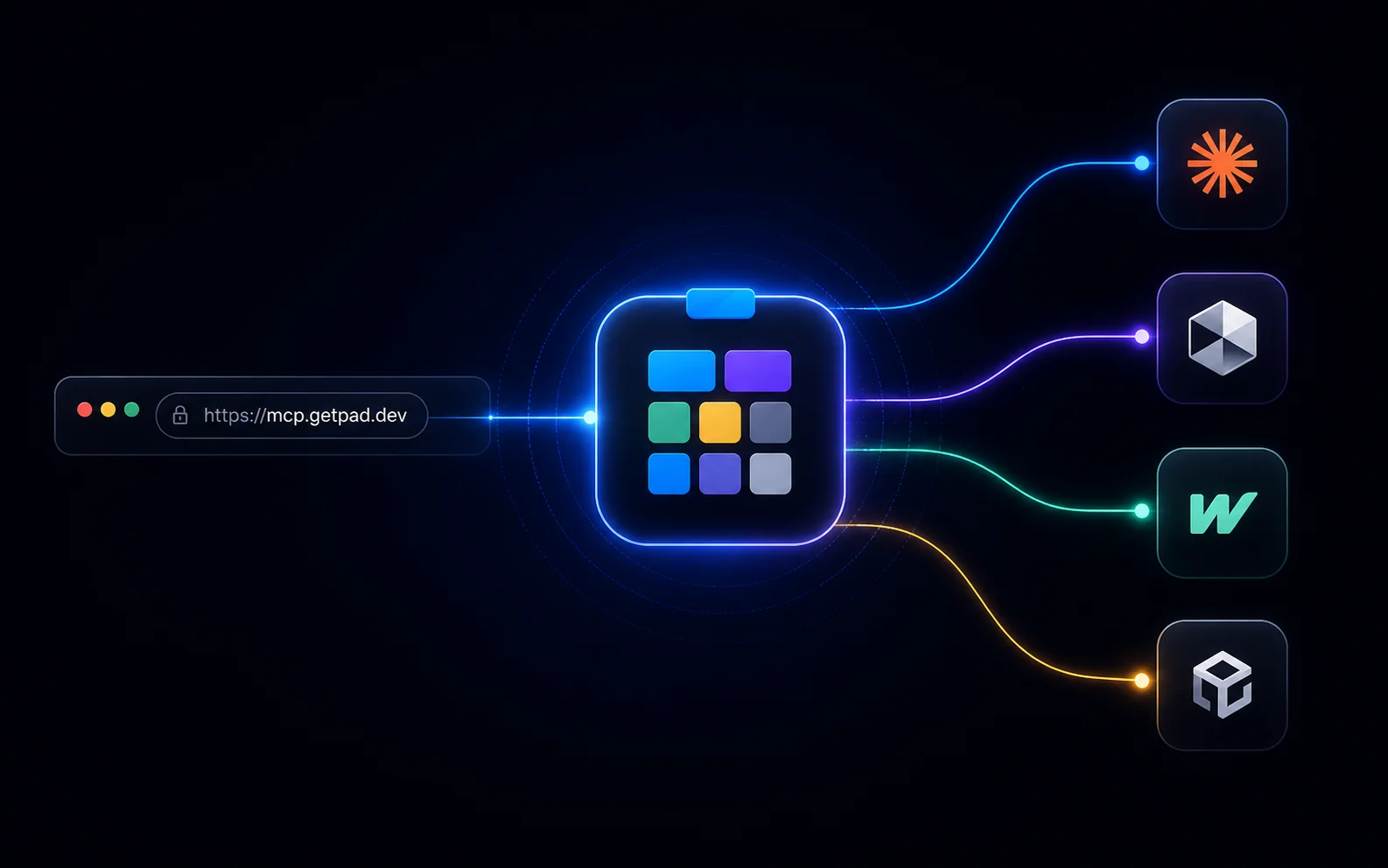

https://mcp.getpad.devPaste that into Claude Desktop, Claude.ai, Cursor, or Windsurf, sign in once with your Pad Cloud account, and your workspace is connected. Your AI agent now has access to your tasks, plans, ideas, docs, and conventions, across every device that runs an MCP-capable client, with no install in between.
This is the cloud-hosted sibling of the local MCP server we shipped two days ago: same tool surface, no install.
What just shipped
Pad now runs as a remote MCP server at mcp.getpad.dev. Any MCP-capable agent client can talk to your Pad Cloud workspace using OAuth 2.1, with no API keys, no local binary, and no per-client configuration. The same questions you’d ask a local Pad agent (“what should I work on,” “prep for standup,” “create a task for fixing the OAuth bug”) now work from any device, with any agent that speaks the protocol.
Stripe, Sentry, Linear, Cloudflare, and Atlassian have all shipped remote MCP servers in the past few months, and Pad joins that set today. Among project management tools specifically, this is still early days; teams using Notion, Asana, or Trello are waiting on their preferred service to follow. Pad’s Cloud users don’t have to wait.
Two-minute setup
You’ll need a Pad Cloud workspace. If you don’t have one, sign up at app.getpad.dev/register, where workspaces are auto-created on first login.
In your agent client of choice (Claude Desktop, Claude.ai, Cursor, Windsurf), find the MCP or connectors settings, add a server pointing at https://mcp.getpad.dev, and complete the OAuth flow. The first time you connect, Pad opens a browser; you sign in, approve the workspaces you want the agent to see, and you’re done.
Step-by-step screenshots for each client live at getpad.dev/mcp/remote.
What you can do once it’s connected
Everything you’d do from a local Pad agent, you can now do from any client connected to your Cloud workspace:
- Ask “what should I work on next?” The agent runs
pad project nextand returns a recommendation. - Ask “prep for standup.” It generates the report.
- Ask “create a task for fixing the OAuth bug, high priority.” It creates the item, sets the priority, and links it to a parent plan if you mention one.
- Ask “what’s blocking the Q2 roadmap?” It searches dependencies and surfaces the blockers.
Your conventions and playbooks come along for the ride. The agent learns how your project works automatically on first connection, with no skill file to install and no per-client setup.
If your team uses multiple workspaces, you choose which ones each agent client can see during the OAuth flow. Manage and revoke access anytime at app.getpad.dev/console/connected-apps.
Local stays first-class
Pad’s local MCP server, shipped two days ago, isn’t going anywhere. The two share a tool surface, so agents trained on one work with the other.
Use local when you’re self-hosting Pad, when your project data needs to stay on your laptop, when you’re running agents inside CI pipelines, or when you want zero network round-trips. Use remote when you’re on Pad Cloud, when you want any device to connect, or when you’re using Claude.ai (which doesn’t run local subprocesses at all).
We didn’t build the remote server to replace the local one. We built it because there are people for whom “install a binary” was always a wall, and now there isn’t one.
Try it now
https://mcp.getpad.devPaste it into your agent client, sign in, and ask: “what should I work on?”
Now go ship something, from any client your agent runs in.