
Yesterday we shipped Pad Cloud. Today we’re shipping the thing that makes it useful from inside the tools you already work in.
pad mcp install claude-desktopRestart Claude Desktop. Ask it: “what should I work on next?”
It runs pad project next, reads the result, and tells you. Same goes for “prep for standup”, “create a task for fixing the OAuth redirect bug”, “what’s blocking us?”.
This works today, with the local Pad install you already have.
What just shipped
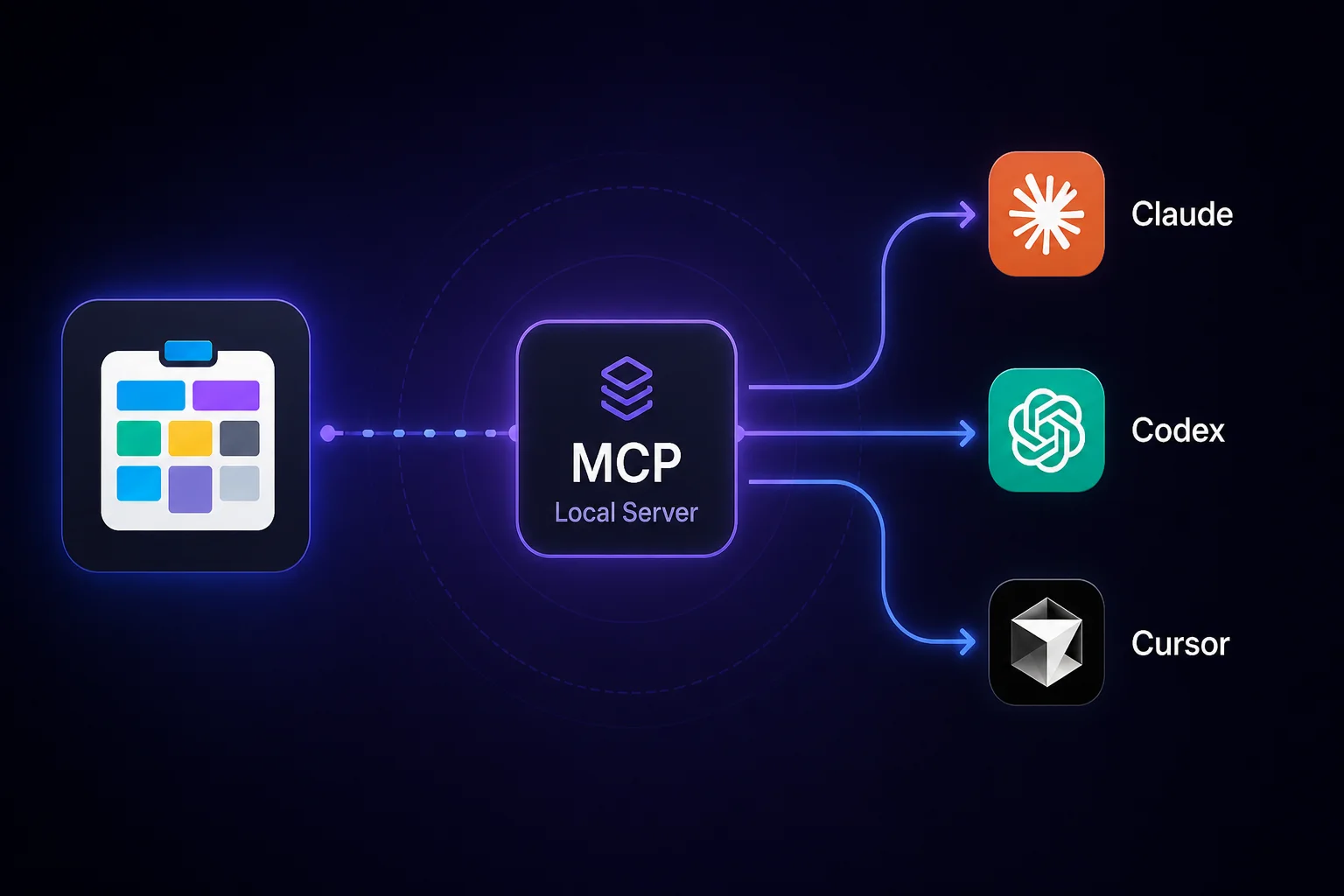
Pad now ships a local MCP server. (MCP = Model Context Protocol, the protocol Anthropic and others standardized for letting agents call tools.) Three clients are supported out of the box:
- Claude Desktop —
pad mcp install claude-desktop - Cursor —
pad mcp install cursor - Windsurf —
pad mcp install windsurf
Each command writes a pad entry into the client’s MCP config (other servers you’ve installed are left alone — we’re a good neighbor). Restart the client and your agent has access to your local Pad workspace. No API keys, no OAuth, no network round-trips — the agent talks to a pad mcp serve subprocess on stdio.
The shape of the tool surface
We didn’t dump every CLI command into the agent’s namespace. The local MCP server exposes a deliberately small catalog, organized by resource:
pad_item— create, update, delete, link, comment, move, searchpad_workspace— context for the sessionpad_collection,pad_project,pad_role,pad_search,pad_meta
Each tool takes an action parameter that selects the verb. So instead of memorizing pad_item_block, pad_item_unblock, pad_item_star, pad_item_unstar (we tried that — it was bad), the model calls pad_item with action: block. Around a dozen tools total, all loadable upfront in any well-behaved MCP client.
There’s an instructions block in the handshake that tells the model when to reach for Pad, and structured error envelopes with hints when something’s off. No more parsing CLI strings.
Two-minute setup
If you’ve got Pad installed:
pad mcp install claude-desktop   # or cursor, or windsurf
# then restart your agent client
If you don’t:
brew install PerpetualSoftware/tap/pad
pad init
pad mcp install claude-desktop
Open the client. Ask: “what should I work on next?”
That’s it.
Local today, hosted soon
This post is about local — pad mcp serve running on your machine, stdio between the binary and your agent client. Local works offline, never makes network calls, and your project data never leaves your laptop.
The hosted version is coming up next. Same tool surface, different transport: paste https://mcp.getpad.dev into Claude Desktop’s connector settings, sign in once with OAuth, and your hosted Pad workspaces become available from any device. More on that in our announcement post.
Why local first
If you’re going to give an AI agent shell access to your project tracker, you want as few intermediaries as possible. Local MCP has zero. The agent talks to pad, pad talks to SQLite, the SQLite file lives in ~/.pad/. No company-controlled middle box, no telemetry, no per-call latency from a hop across the internet.
Cloud has its own pitch. Local has this one.
pad mcp install claude-desktopNow go ship something — with an agent that knows what you’re working on.